Combine PDF Files Without Adobe: A Practical Browser Guide
Oct 30, 2026 · 11 min read
By FreeGenDoc · Updated
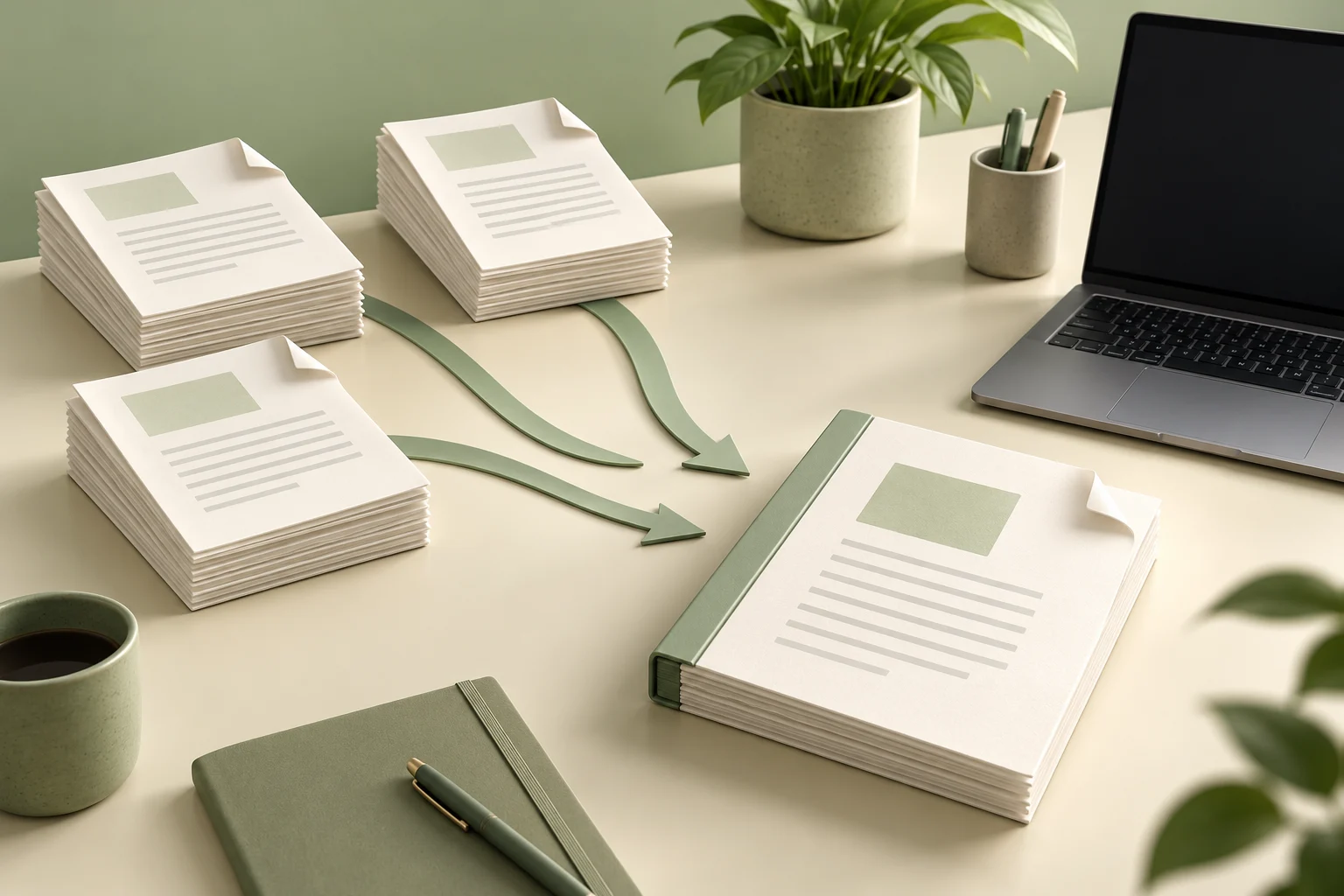
You can combine PDF files without Adobe by using a browser tool that reads your documents, copies their pages into a new file, and downloads the result. The important decisions are where processing happens, how you arrange the files, and what you check before sharing the finished document. A successful merge should make the recipient's job easier, not simply produce a larger attachment.
FreeGenDoc provides a merge tool that processes selected PDFs in your browser. This guide explains that workflow, its limits, and the checks that help you avoid missing pages, duplicated attachments, unreadable scans, and unexpectedly large files. You do not need an Adobe subscription for this method. Keep the originals until you have opened and checked the downloaded copy.
Start by deciding what the final document should contain
Imagine sending an application with a cover letter, a completed form, and two supporting documents. Before opening a merger, decide the intended reading order. A simple sequence might be the letter first, then the form, then the supporting evidence. This small planning step prevents an otherwise correct PDF from becoming confusing for the person receiving it.
Create a temporary folder containing only the files needed for this delivery. Give them clear working names, such as 01-cover, 02-form, and 03-supporting-document. These names help you prepare, but they do not replace checking the list inside the tool. Different file pickers and devices can present selected files in different orders. The visible merge list is the sequence that matters.
Check the recipient's instructions before combining anything. A portal may require separate uploads, individual file names, a maximum attachment size, or a specific document order. Combining everything into one PDF is useful only when it matches those requirements. Do not remove requested separation merely because a single attachment looks tidier. Keep each source available for a different submission format.
Understand browser processing before selecting private files
An online address does not automatically mean every document is uploaded to a remote processor. FreeGenDoc's PDF merge code reads selected files through the browser, copies pages locally, and creates a downloadable PDF. That describes this particular merge operation. It does not mean the whole website never makes network requests: loading pages, scripts, and other site resources still involves the internet.
Local processing can be useful when you prefer not to send document contents to a merge server. It is not a substitute for protecting the device itself. A shared computer, an untrusted browser extension, or an exposed download folder can still create problems. Use a device and browser you trust, and follow your organization's rules when handling work documents.
Do not assume the page will work indefinitely without an internet connection. Its resources must first load, and the site does not promise an installed offline application. If you need a fully offline workflow, use an appropriate desktop tool and verify its capabilities before relying on it. The distinction between local document processing and guaranteed offline availability is worth understanding before a deadline.
Combine your PDFs with FreeGenDoc
Open the FreeGenDoc merge PDF tool and choose your source documents. Use PDFs rather than images or word-processing files disguised with a different extension. Renaming a photograph from image.jpg to image.pdf does not convert its format. If your starting material is a photograph or scan image, convert it to a genuine PDF first, then return to the merge workflow.
The current interface accepts individual files up to 50 MiB. A file below that limit can still be demanding if it contains many high-resolution scans. Available memory, browser behavior, and the number of selected documents affect processing. Start with a modest set rather than treating the individual-file limit as a guarantee that every possible combination will finish on every device.
Review the displayed list after selection. Use the up and down arrows to move entire documents into the desired sequence, and remove anything added by mistake. The merger preserves each source document's internal page order while placing the documents in list order. Moving a file is different from rearranging individual pages within it. Prepare a separate edited source if its own pages need changing.
You need at least two selected PDFs for the merge action. Once the list is correct, start the merge and allow processing to finish. Save the downloaded file somewhere you can find it. The default download name may be generic, so rename your checked delivery copy with a descriptive name. Avoid including unnecessary personal information in the file name itself.
Check the page count and the actual page sequence
Count the pages you expect before sharing. If your sources contain two, five, and three pages, the combined document should contain ten. This is a simple example, not a promise that the interface will recover damaged pages. Open the output in a PDF viewer and compare the total with your source files. Investigate any mismatch before treating the task as complete.
Next, inspect the transition between documents. The last page of the first file should be followed by the first page of the second. Check every boundary in the sequence, particularly where several attachments have similar titles. Duplicate scans can look plausible at a glance. A quick boundary review often finds an accidental extra document faster than reading every paragraph from the beginning.
Check the first and final pages as well. Make sure a cover page has not moved to the end, the last attachment is complete, and no blank scan was mistaken for a missing page. Some intentionally blank pages belong to the original document. Decide whether they should remain by considering the source and the recipient's requirements rather than deleting them automatically.
Keep text readable and scans useful
Merging PDFs is different from taking screenshots of their pages. FreeGenDoc copies source pages into a new PDF; it does not deliberately turn every page into a photograph. However, a scan that already contains only an image remains an image. Combining it with searchable documents does not create searchable text. Optical character recognition is a separate task.
Try selecting a sentence in the output. If you can select it in the original but not in the merged file, investigate before sending. If neither version supports text selection, the source may simply be a scan. For documents that must be searchable or accessible, use suitable tools to check those requirements separately. A visually correct merge is not proof of accessibility compliance.
Zoom in on small text, signatures shown as images, stamps, and tables. A readable page on a large monitor may be uncomfortable on a phone. Do not assume the merger improves a blurry scan. If the original is difficult to read, return to the capture or export step. Better source quality is usually more useful than repeatedly combining the same weak input.
Handle protected PDFs and signatures carefully
A password-protected, encrypted, or damaged PDF may fail to load or merge correctly. Do not interpret a failed operation as permission to bypass restrictions. Ask the document owner for an appropriate unlocked copy when you are entitled to use it. If the PDF opens normally but merging fails, try obtaining a fresh export from the original application.
A visible handwritten signature image and a cryptographic digital signature are different. Creating a new combined document can affect the validity or verification of a digital signature. FreeGenDoc does not promise to preserve signed-document validation through merging. Keep signed originals unchanged, check the recipient's requirements, and use an appropriate signature-preserving workflow when validity matters.
Interactive forms, bookmarks, links, annotations, attachments, and document-level features also deserve separate checks. Copying pages into a new PDF is not a guarantee that every feature of every source survives. If someone needs to complete form fields later, test those fields in the final file. When the recipient requires originals, send the originals through the requested channel instead of substituting a combined copy.
Understand why the final file can still be large
A merge is not the same operation as compression. Combining several scan-heavy PDFs can produce a large output because the images are still present. Start by checking the recipient's size limit. If the output exceeds it, identify which source files contribute most. One oversized scan can matter more than several short text documents combined.
If compression is appropriate, work on a copy and compare readability afterward. Pay particular attention to small numbers, account references, stamps, and fine lines. A smaller attachment is not useful if important details disappear. FreeGenDoc offers a separate PDF compression tool; choose it deliberately rather than expecting the merge button to solve file-size problems automatically.
Avoid repeatedly converting between PDF, image, and word-processing formats solely to reduce size. Each extra transformation can introduce layout changes or remove features. Prefer the simplest workflow that meets the recipient's requirements. Preserve an original-quality copy and label the delivery copy clearly so that a compressed version does not accidentally replace your only useful source.
Troubleshoot a merge that does not finish
If processing fails, first confirm that every input is a genuine PDF and opens individually. Remove the most recently added file and try a smaller group. This helps distinguish a problematic document from a memory-heavy combination. Close unnecessary browser tabs if the device is struggling, but do not close the active merge page while it is still processing.
On a phone, several large scanned PDFs can place more pressure on available memory than the same task on a computer. Try smaller batches or a more capable device when necessary. Keep a written record of the intended order if you merge in stages. A second-stage merge can accidentally duplicate a section when source and intermediate files have similar names.
If the download seems missing, check the browser's downloads list and the device's usual save location. A successful download may not open automatically. If the file is incomplete or cannot be opened, repeat the operation from the originals and verify the new output. Do not send a file merely because its name appears in your downloads folder.
Use another method when it fits the situation better
Mac users can also combine PDFs with Preview. Apple's guide explains using the thumbnail sidebar and dragging pages between documents. Work on copies when experimenting, and check the save behavior before modifying an original. Preview is a useful alternative when you prefer a desktop application or need to inspect pages directly while assembling a document.
On another operating system, choose a tool that fits the actual requirement rather than installing the first utility advertised as free. Check whether it processes files locally, whether its current version includes merging, and whether it adds watermarks or imposes limits. This guide does not claim that every PDF reader or built-in print command can combine existing PDFs.
Make recurring document packets easier to manage
For a recurring packet, keep a simple manifest listing each source name and expected page count. Update that list when a source changes instead of relying on last month's combined PDF. This helps avoid including an outdated attachment simply because it was already in the working folder. A new merge should be built from the current approved sources.
Consider your recipient's reading experience as well. Portrait and landscape pages can coexist, but each should open in a sensible orientation. Check wide tables at a useful zoom level and confirm that headings remain visible. Where a cover sheet helps, create it as a separate PDF and place it deliberately at the beginning. Keep any table of contents consistent with the final page order.
Finish with a clean delivery copy
Before sending, reopen the final file from the exact folder you will use for delivery. Verify the name, page count, order, orientation, and readability. Search for a short phrase if searchable text matters. Check any forms or links that the recipient needs. Keep the source documents and the verified output until you know the delivery was accepted.
For repeated tasks, create a short checklist using those same checks. You can then combine PDF files without Adobe consistently, whether you are preparing a study packet, an application, or a collection of ordinary business documents. The most reliable result comes from clear preparation and a final review, with the merge tool handling the mechanical step in between.
A reproducible check of page order
On 31 October 2026, we ran src/lib/pdfMerge.ts locally with two generated, unencrypted PDFs: A contains two pages and B contains one. The merged result has three pages. With A followed by B, the order is A1, A2, B1; with B followed by A, the order is B1, A1, A2. Distinct page dimensions identify each page so its position can be checked automatically.
This structural code check is not a test of the live website interface, a hosting audit, validation of every PDF feature, or evidence of offline operation. It does not check digital signatures, interactive forms, or annotations. Always open the output to check your real documents.
Read the page-order check method and results (JSON)
Ready to try it yourself?
Open the tool