How to Save a Picture as a PDF Without Cutting It Off
In this guide
To save a picture as a PDF, open an image-to-PDF converter, select your image, choose the page layout, and download the document. FreeGenDoc also lets you put several pictures into one PDF; check their order, page boundaries, and readability before sending the finished file.
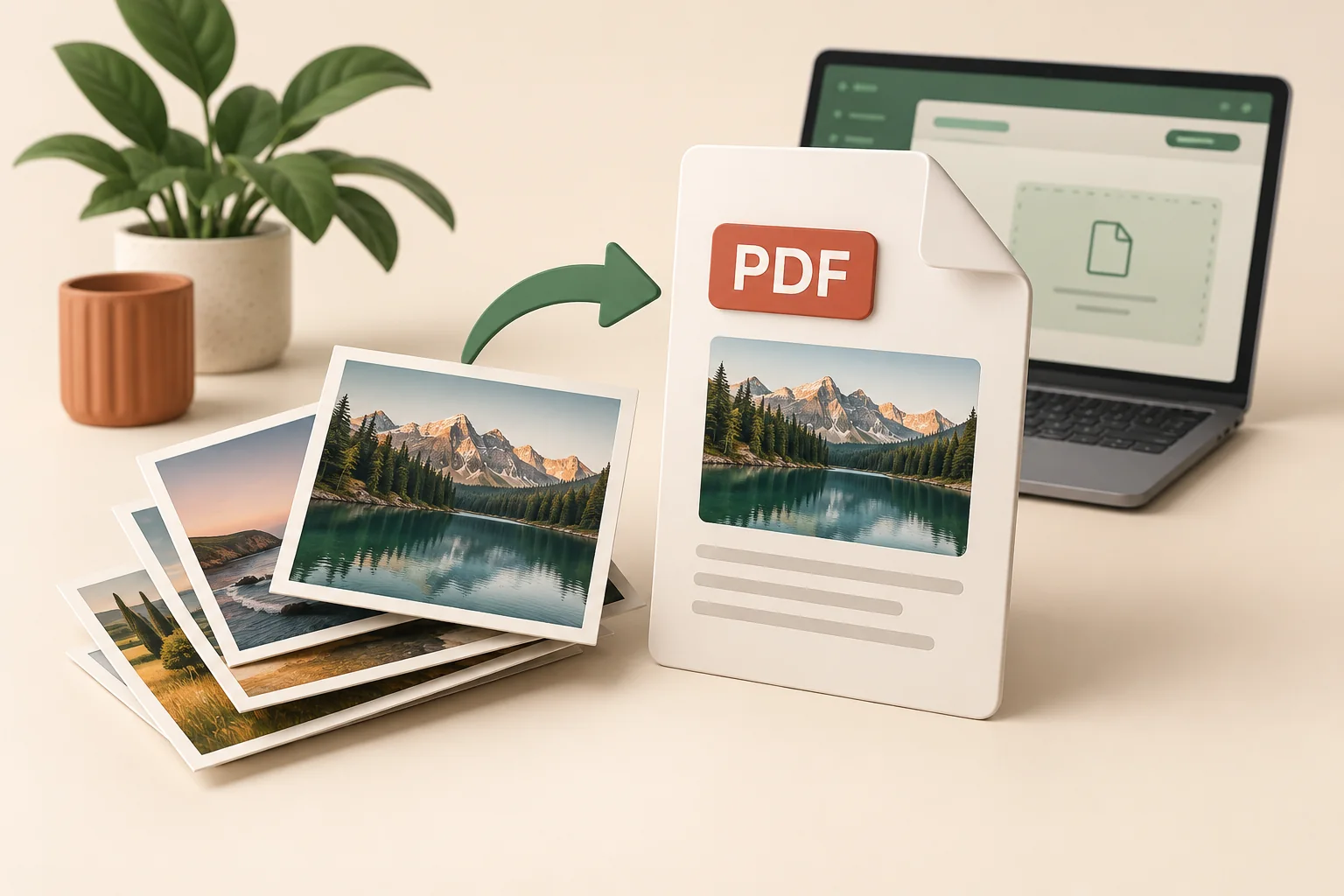
How do you save a picture as a PDF in your browser?
Use FreeGenDoc’s Image to PDF tool to build a document from JPG, PNG, or WebP pictures. The conversion runs in your browser, and the original images remain your starting point if you need a different layout. Decide whether you need one picture or a sequence of pages before selecting the files.
- Open the tool and select the pictures you want to include.
- Move the pictures into the intended reading order.
- Choose the page size, orientation, and margins.
- Download the PDF and open the saved copy to review every page.
Which page settings help you avoid clipped pictures?
Choose settings that match the document’s destination and the shape of your pictures. A wide image usually fits more naturally on a landscape page, while a portrait document may suit portrait orientation. If a school, employer, or application portal specifies a page size, follow that requirement before choosing a layout for appearance alone.
| What you need | Setting to check |
|---|---|
| A document requested in US Letter | Letter page size |
| A document requested in A4 | A4 page size |
| A page based on the image dimensions | Fit-to-image page size |
| A wide photograph | Landscape orientation |
| Space around the picture | Margins |
How can you keep the picture readable in the PDF?
Start with a sharp image because saving it as a PDF does not recreate detail missing from the original picture. For a photographed document, check the corners, fine print, and glare before conversion. Taking a better photograph can solve a readability problem that page-size adjustments cannot fix, especially when important text is already blurred.
- Keep the whole document inside the photograph.
- Straighten the image if the page is tilted.
- Avoid reflections over names, numbers, or instructions.
- Review the saved PDF at a normal reading size, not only as a thumbnail.
How do you convert PNG to PDF?
To convert PNG to PDF, select the PNG file in the same converter and choose the page layout before downloading. You can include it alongside JPG pictures in one document. Check the saved page against the original image, particularly when a screenshot contains small interface labels or fine lines.
Will the text inside the picture become selectable?
No, putting a picture in a PDF does not automatically turn photographed text into selectable characters. That requires optical character recognition, or OCR, which is a separate operation. FreeGenDoc’s Image to PDF converter places images into a document; it should not be described as an OCR tool or a way to make every photographed page searchable.
Different operations: conversion creates the PDF document; OCR attempts to recognize text inside its images.
FAQ: what should you check when saving pictures as a PDF?
Can you put several pictures into one PDF?
Yes, FreeGenDoc lets you select several images and change their order before creating the document. Compare the thumbnails with the intended sequence, then inspect the downloaded PDF. A file can contain all the required pictures and still confuse its reader if the pages appear in the wrong order.
Why is the PDF sometimes larger than the original picture?
A PDF does not guarantee a smaller file because it contains document structure as well as image content. Compare the downloaded file with the recipient’s size limit rather than assuming conversion has compressed it. If needed, use the PDF compression guide to examine the next step.
Can you convert a picture on a phone?
Yes, you can open the converter in your phone’s browser and choose a picture through its file picker. The selection and download screens depend on your device. If an image format is not recognized, try a JPG or PNG copy instead of merely changing the letters at the end of its filename.
Where should you look for the downloaded PDF?
Look in your browser’s downloads or the location you selected when saving the file on your device. Open that local copy before attaching it to a message or uploading it. This confirms that you are sharing the newly created PDF rather than an earlier file with a similar name.
What should you remember before sending the PDF?
Saving a picture as a PDF means selecting the images, choosing a suitable layout, and checking the downloaded result. Aim for complete, readable pages in the correct order, with the page size and file size your recipient requires. Keep the original pictures in case you need to prepare another version.